My Machines
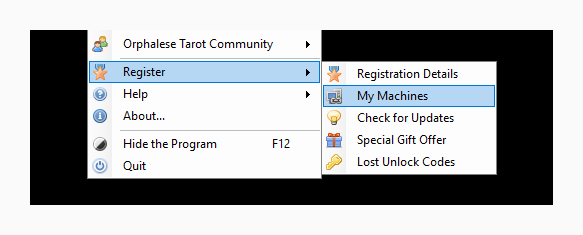
The Machine Profiles Tool is launched by selecting My Machines off the Registration Menu.
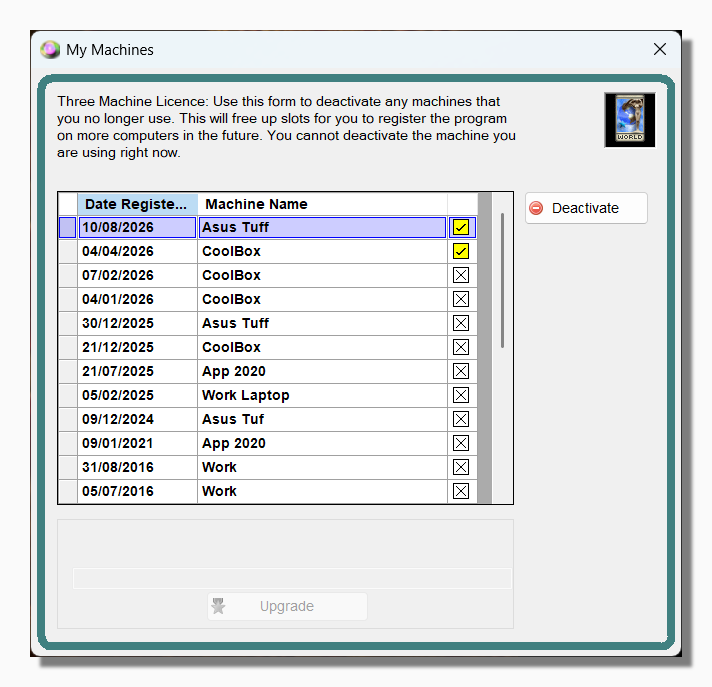
The My Machines window can be used by people who have registered a three machine ("user") licence to manage their active machines. Before discussing how to manage one's machines, it might be useful to review the two kinds of licence.
The User Licence allows you to have three machines active at any given time. For example you might have a machine at home, a work machine and a laptop, all of which you can install upgrades on and continue to unlock with the unlock code you received when you register the program. In the natural course of events you replace computers as they wear out. This screen allows you to deactivate machines that you no longer use, freeing up slots for new machines. Over time you can install the program on as many machines as you like and continue to unlock them, but you need to remember that only three are active, and you cannot go back to a deactivated machine. You should only deactivate machines that have been permanently disposed of. Of course, you can still run and use the program on a "deactivated" machine, but you wouldn't be able to unlock it if you installed an upgrade to the program, so at that point you would effectively be running the free version of the program only.
The Single Machine Licence works in a similar way but you only have one active machine at any given time, not three. Again, over time you can install the program on as many machines as you like and continue to unlock them, but each time you unlock a new machine the previous one becomes deactivated. This happens automatically, so there is no reason to use this form if you have a single machine licence. You may still want to refer to it for information though.
To deactivate a machine simply select it in the list and press the "Deactivate" button. There will be a short pause while the machine connects to the internet and the user database is updated. After that you should see a message pop up telling you that the deactivation was successful.
Tip: The deactivate button is only enabled when an active machine is selected in the list. Also, you cannot deactivate the machine you are currently using. This is to reinforce the idea that you should only deactivate machines that you have permanently and definitively ceased to use.
Tip: You can also use this screen to apply licence upgrades. If you originally bought a single machine licence and you want to upgrade to a user licence you can buy an upgrade on the website. This consists of a special key which is sent to you by email. You can copy and paste this key into the text area at the foot of the page and press "Upgrade" in order to update the database and begin using the full features of the program on other machines.